
Blocks A
First example
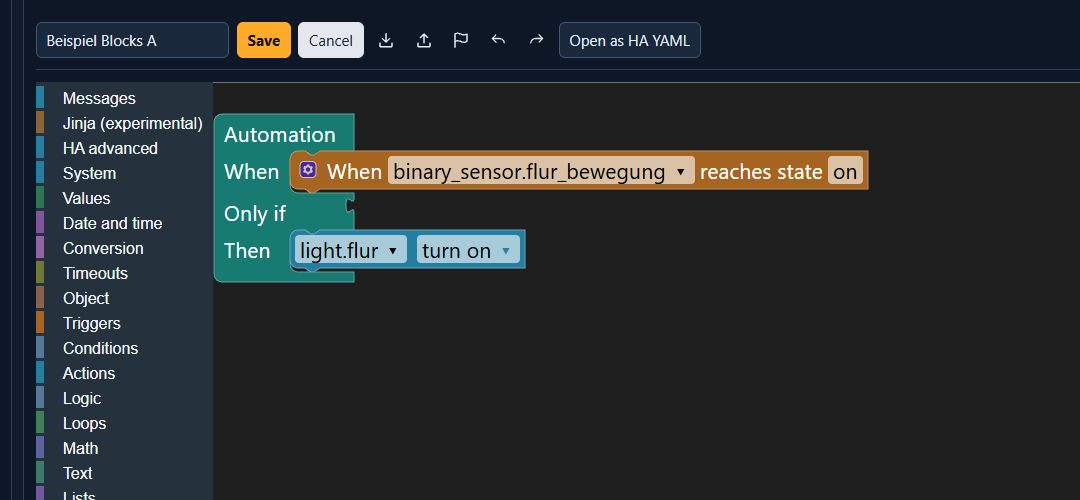
The example turns on a hallway light when the motion sensor changes to on.
- Choose New project → Blocks A and name the project. The workspace contains an Automation block.
- Open Triggers and drag the state trigger into When. The screenshot uses
binary_sensor.flur_bewegungand the stateon. Select your own test helper or sensor. - Open Actions and drag a switch action into Then. The example uses
light.flurand turn on. You can target a second test helper instead. Leave Only if empty for this example. - Click the flag icon to check the blocks. When the check passes, choose Open as HA YAML and review
triggersandactionsbefore exporting.
Features
Palette and connectors
Pick blocks by their role. Connector shapes indicate where a value or an action fits.
Triggers and conditions
A trigger starts the automation. A condition can check whether the other helper is off.
Actions
Stack actions in the order they should run.
HA selectors
Choose entities, actions, devices, areas, labels or floors. Check the corresponding ID in YAML.
HA-YAML draft
Open the generated automation as a draft that identifies its source project.
Export
Check the YAML and use it in HA. Test the trigger and inspect the automation trace there.
If something goes wrong
If a selector is empty, check the connected HA system for matching entries.