
Sidebar Colors

0.1.0 · Frontend extension · DE / EN / FR · MIT
Give each Home Assistant sidebar entry its own icon and label color. The new color field is placed directly in Edit sidebar, between the name and the eye control. Visibility and order remain controlled by the familiar native controls.
GitHub · Download / Releases · Open in HACS
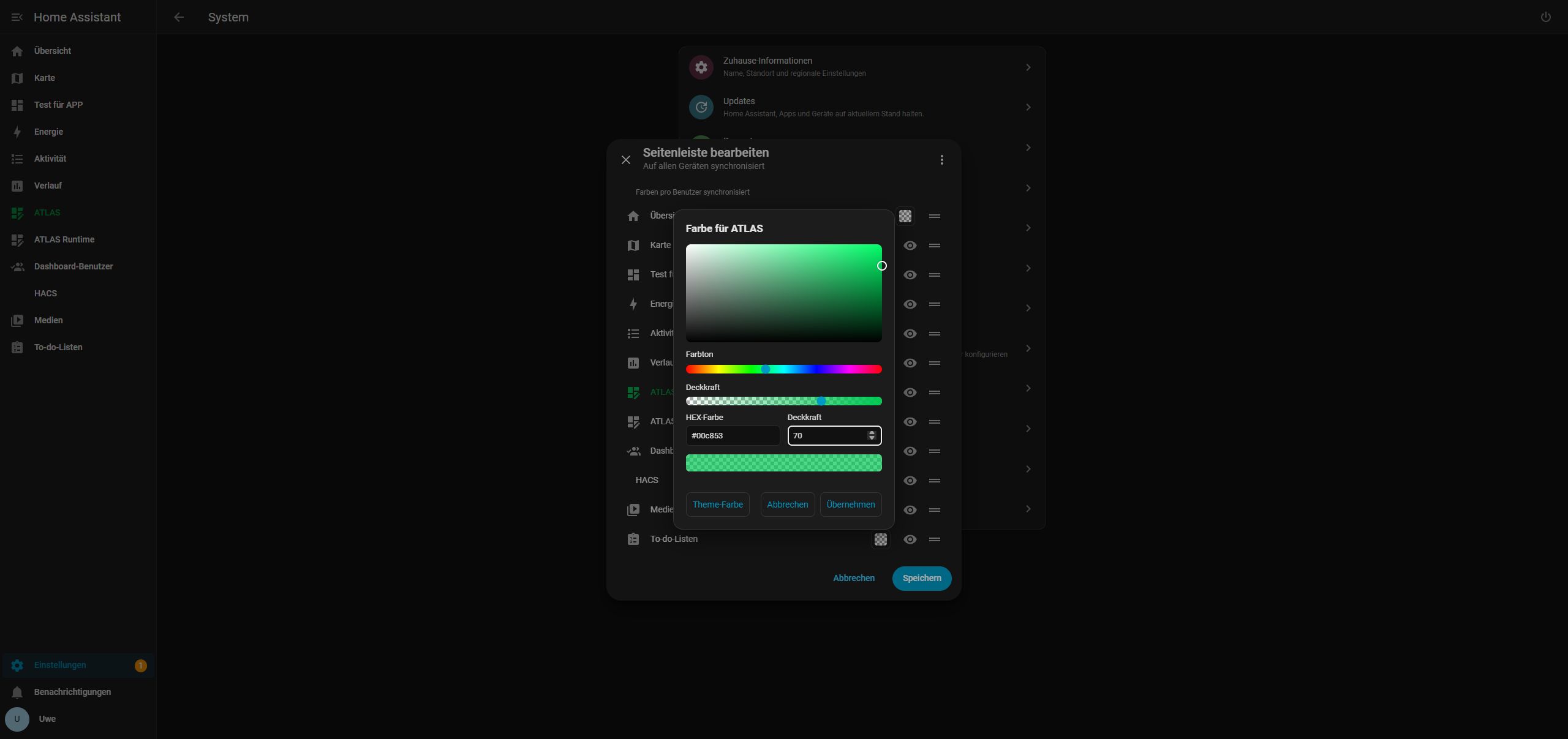
Color picker
Saturation/brightness area, hue slider, HEX input and opacity with live preview. The checkerboard represents transparency. Apply closes the picker; only Save in the HA dialog persists the change. Cancel discards the corresponding color draft. Theme color removes that entry’s override.
User examples
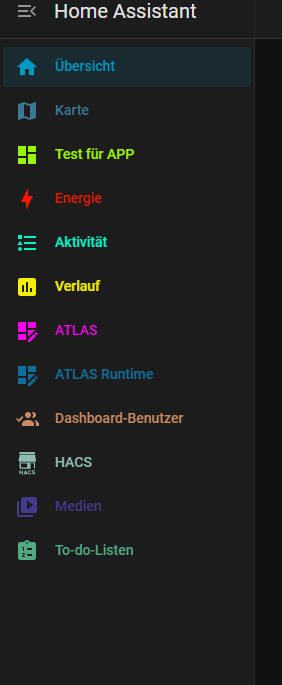
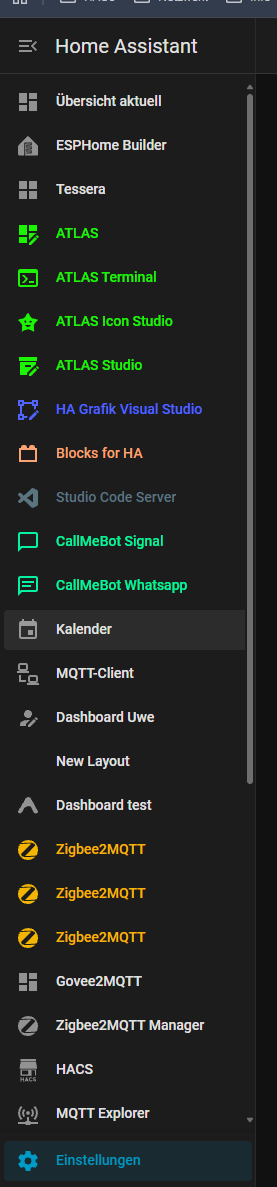
The screenshots show individually chosen icon and text colors. Identical display names remain distinct through their panel paths. There is no enforced palette.
Requirements and verification
Intended minimum: Home Assistant Core 2026.10.3. Real tests on 2026.10.4 covered color selection, 70% and 0% opacity, preview, Save/Cancel, reload, theme reset, two-tab synchronization and native visibility/reorder controls. The user confirmed the result. The temporary test color was removed; their own colors were retained.
The minimum follows the available interfaces, not a separate live test on 2026.10.3. Marketplace starting with 2026.11 uses the same HACS-compatible package format; no separate runtime test there is claimed. Official Marketplace description
Install with HACS / Marketplace
Create a full HA backup first. This is a frontend plugin, not a Supervisor app or a card to add to a dashboard. It is initially available as a custom repository; publication does not automatically add it to the default catalog.
- In HACS, add
https://github.com/rockbaer2007/ha-sidebar-colorsthrough Custom repositories, category Dashboard (plugin), then download Sidebar Colors. - Starting with 2026.11, use the corresponding custom-repository flow under Settings → Marketplace. Marketplace carries over HACS settings; no separate migration format is required.
- Extend the existing
frontend:section. Preserve existing themes and extra modules; do not add a duplicate section:
frontend:
  extra_module_url:
- /hacsfiles/ha-sidebar-colors/ha-sidebar-colors.js- Check the configuration, restart HA and reload the browser. A dashboard resource alone is insufficient when opening a non-dashboard page first. The module entry also loads the extension there.
- Hold the Home Assistant sidebar heading and click a color field.
Manual installation or migration
Copy the single ha-sidebar-colors.js release file to /config/www/ha-sidebar-colors.js and use /local/ha-sidebar-colors.js as the module instead. The release ZIP contains the same file, license and documentation. Do not load both installation paths simultaneously.
For the older three-file prototype, replace /local/ugso-sidebar-colors/0.1.0/sidebar-colors.js with the new module path, restart HA and reload the browser. The color storage stays the same; old files may remain as a backup.
Preserve settings and update
Colors are stored per HA user under the separate key ugso_sidebar_colors_v1 and synchronized on devices with the extension loaded. Panel paths, rather than names, prevent collisions. A colors-only save does not overwrite native order, hidden entries or theme settings. Dashboard configuration and permissions are unchanged.
Before saving, one previous snapshot of colors and sidebar preferences is kept locally under ugso-sidebar-colors-backup:<user-id>. This does not replace a full HA backup. Full or blocked browser storage prevents saving. No new credentials, external scripts or cloud translation are required.
Update from the same HACS/Marketplace repository, preserve the module path and reload the browser. To uninstall, remove only the module entry, restart HA and reload. Theme colors return while native settings are retained.
Limits
The extension hooks internal HA dialog methods and must be rechecked after frontend upgrades. Conflicts or uncertain acknowledgements keep the draft open; writes are not blindly retried. This user-data API has no atomic compare-and-save. Colors and native order are separate operations, with checked best-effort compensation on failure.
At 0% opacity, icon and text can be invisible, but the color field stays accessible. Selection background, titles and access control remain unchanged. Failure/conflict tests were simulated locally; no real phone/tablet test or induced Marketplace network failure is claimed. Verification details and source.