
USB Extender for Home Assistant
0.1.28 · Public test release · Raspberry Pi · Updated 22 November 2026
A USB keyboard connected to a Raspberry Pi can become a control panel for Home Assistant or ioBroker. USB Extender reads inputs and publishes them to up to three MQTT brokers simultaneously. Its configuration web interface can then be stopped; the USB/MQTT service continues independently.
GitHub / German and English README · ZIP 0.1.28 · Changelog
This is a standalone Raspberry Pi program, not an HA app installed through the app store and not official Home Assistant or Elgato software. It is not a USB-over-IP tunnel: printers and cameras are not forwarded as remote USB devices.
The screenshots are supplied by the user from the real 0.1.5 setup. The interface currently uses German labels. Click wide images to open their original size.
Which devices are detected?
Detected initially means that Linux can list the USB device. Usable also requires a driver that reads its input and your explicit permission in the app. Those are separate capabilities.
| Device | Implemented functionality | Verification |
|---|---|---|
| USB keyboards, including Windows multimedia keyboards | Key codes, press/release, toggling switch, pressed state, click/double-click/hold | Trust/HCT keyboards used in the practical setup |
| Volume and media keys | KEY_VOLUMEUP, KEY_VOLUMEDOWN, KEY_MUTE; other reported playback/track keys | Volume/mute observed; test other keys per model |
| HID macro pads and USB pedals | Same processing if Linux reports ordinary key codes | Model-dependent; reports welcome |
| Physical Elgato Stream Decks | Dedicated HID driver; display/input features below | Implemented; no physical Stream Deck tested in this project yet |
| Other LCD-key devices | Keyboard input may work through HID; displays need the appropriate vendor driver | No blanket compatibility claim |
| Printers, cameras, storage, audio interfaces, serial devices and other controllers | Inventory listing; specific functionality needs separate adapters | No general print/camera/audio/MIDI/serial forwarding |
| Stream Deck Mobile / Android app | Optional experimental network server with QR pairing, images and MQTT | User confirmed pairing, icon transfer, colours and an 8×8 grid; long-term stability still open |
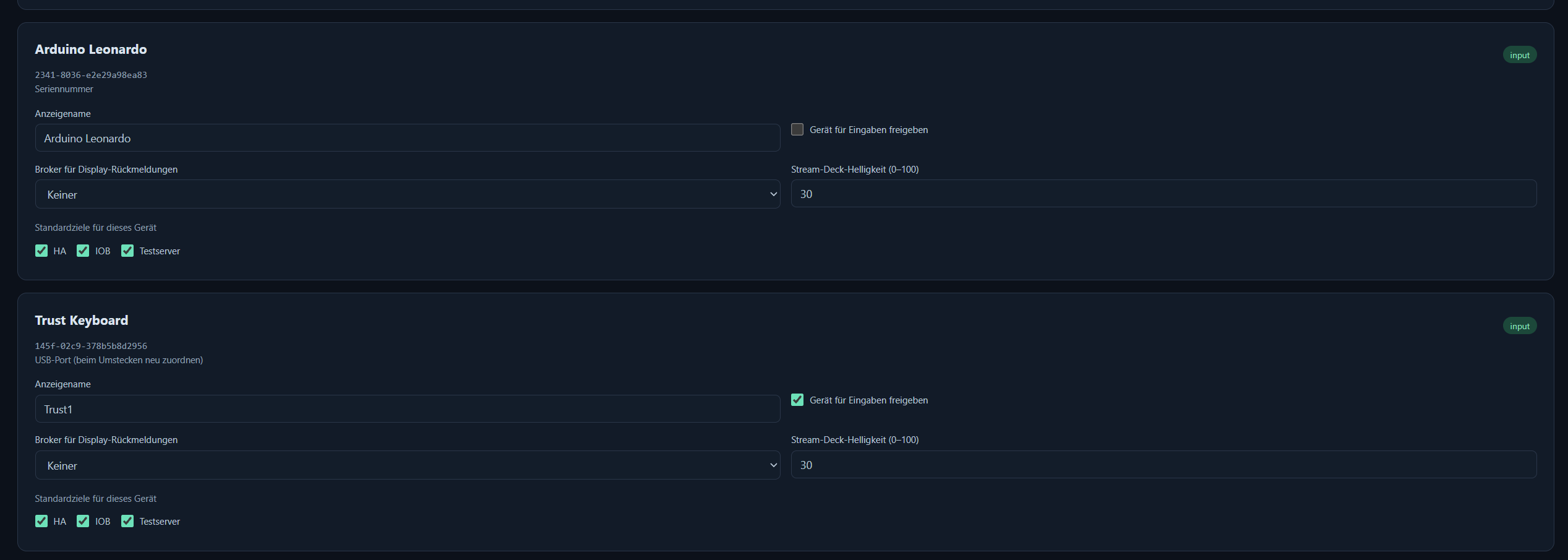
A listed device is not automatically enabled. Under USB / Virtuelle Geräte, assign a name, select Gerät für Eingaben freigeben, and choose destination brokers. Devices without a serial number use their USB port for identification; moving them to another port may require assigning them again.
Install on the Pi
Recommended: Raspberry Pi 4, Raspberry Pi OS Lite 64-bit Bookworm or newer, Python 3.11+, systemd, sudo, and internet access for apt/PyPI. Multiple display devices may need a separately powered USB hub. 32-bit Pi OS has not been practically verified.
Copy the ZIP to the Pi, open a terminal in its download directory, and run:
sudo apt-get update && sudo apt-get install -y unzip
unzip USB-Extender-Home-Assistant-0.1.28-Raspi4.zip
cd USB-Extender-Home-Assistant-0.1.28
sudo bash install.shThe installer shows nine steps, checks dependencies and installs missing packages. Updates back up existing data under /var/backups/ and retain settings and icons. The ZIP is not a fully offline system image. For later updates, extract the new ZIP separately and run its installer.
Set a web password during initial setup; there is no installed default password. If necessary, run sudo usb-extender password. Then:
sudo usb-extender web startOpen http://<pi-address>:8098 in your browser and sign in. Replace screenshot example addresses with your own brokers. Use HTTP only in a trusted local network; otherwise put VPN/HTTPS in front. Do not expose the UI to the internet.
Configure brokers and learn keys
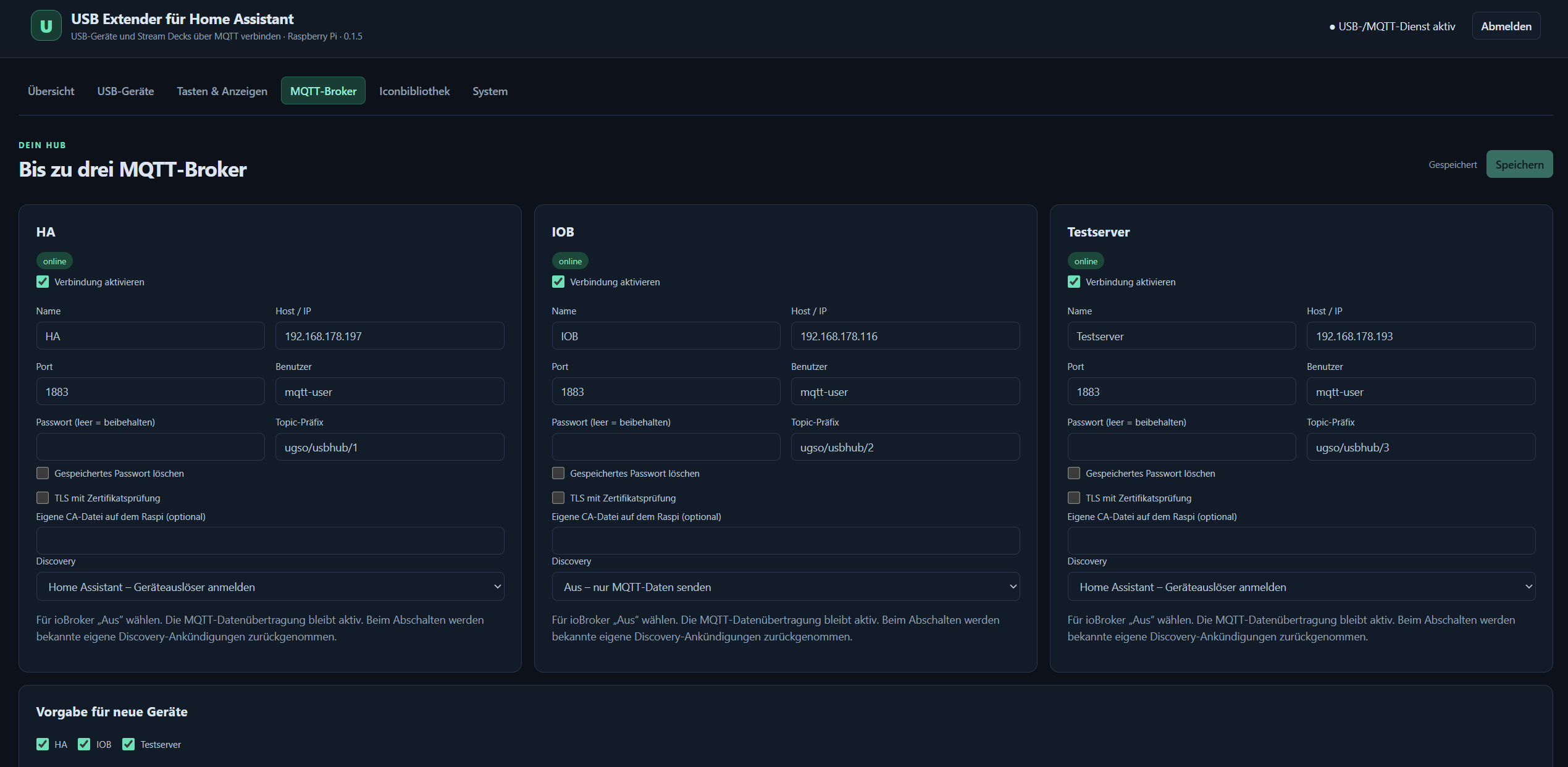
- Under MQTT-Broker, enter host, port and any credentials. Enable wanted connections and save. Each broker has an independent connection; a key can use all three.
- Enable discovery on HA brokers. For ioBroker select Aus – nur MQTT-Daten senden so its HA-discovery adapter does not complain about device triggers.
- Under USB / Virtuelle Geräte, name and enable the device, choose its targets and save.
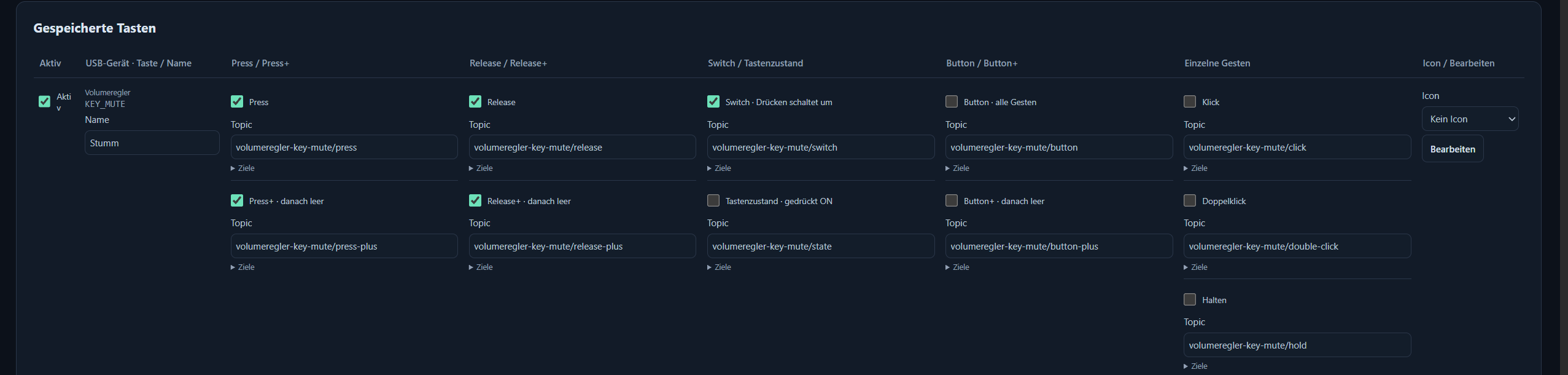
- Under Tasten & Anzeigen, select the device and click Anlernen starten. Press and release each wanted key once. Repeated or existing keys are not duplicated.
- Select Anlernen beenden → Tasten übernehmen → Speichern. New rows are now active. During learning, the selected device does not send MQTT actions.
- Change channel checkboxes, topics or names per row. Bearbeiten opens broker selection, switch behaviour and timing. New extra channels on existing rows initially remain off; newly learned rows have all channels prepared.

If the browser closes during learning, the input pause expires within 15 seconds without further heartbeats. Learning drafts remain in the browser until applied and saved. Already saved assignments remain intact.
Topics and key functions
Device name Trust1 and key F1 produce, for example, trust1-key-f1/press. Names are made MQTT-safe; German umlauts such as “Büro” become buero. Duplicate device names receive -2, -3 etc. when needed. Saved topics remain stable after renaming and have the same name on every selected broker. Each can be edited.
Suffix after trust1-key-f1 | Payload and function |
|---|---|
/press | press immediately when pressed |
/release | release when released |
/press-plus, /release-plus | Same action, then an empty message after 50 ms on that channel |
/switch | First press ON, next press OFF; release does not change it |
/state | Pressed ON, released OFF |
/button | click, double_click or hold, depending on operation |
/button-plus | Same button action, then empty after 50 ms |
/click, /double-click, /hold | The respective individual gesture |
The word plus is used because + is an MQTT wildcard. All eleven channels can be enabled separately. Only plus channels are reset to empty; empty does not mean physical release. Switch values persist in switches.json across app restarts and are synchronized again after reconnection.
Click/double-click/hold: A click waits for the double-click window (default 300 ms after release). A second click within it produces only double_click. Holding for 700 ms produces hold once, without a click on release. Holding the second press replaces the pending click sequence with hold. Times are adjustable per key. Native keyboard repeat is not another click or switch operation.
Volume up/down: Active Press/Press+ channels can repeat while held, by default after 500 ms every 150 ms. Release stops repetition; a 30-second safety limit also applies. Your HA automation or ioBroker logic determines the volume step. Ordinary Press/Release channels remain immediate, independent of delayed button recognition.
Key messages use QoS 0 and no retain. Offline input is not replayed. Multiple active channels can trigger multiple mapped automations; select the channel appropriate for the intended single function.
Home Assistant and ioBroker
HA discovery groups all keys under the selected device name and one stable device identifier. Actions are device triggers with payload filters. Switch and pressed state are binary sensors showing state; controlling another device requires an automation or mapping.
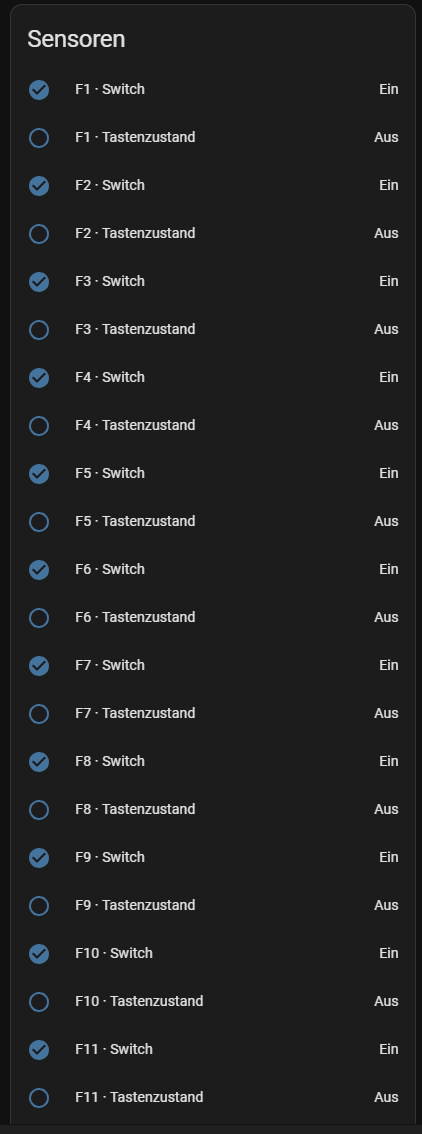
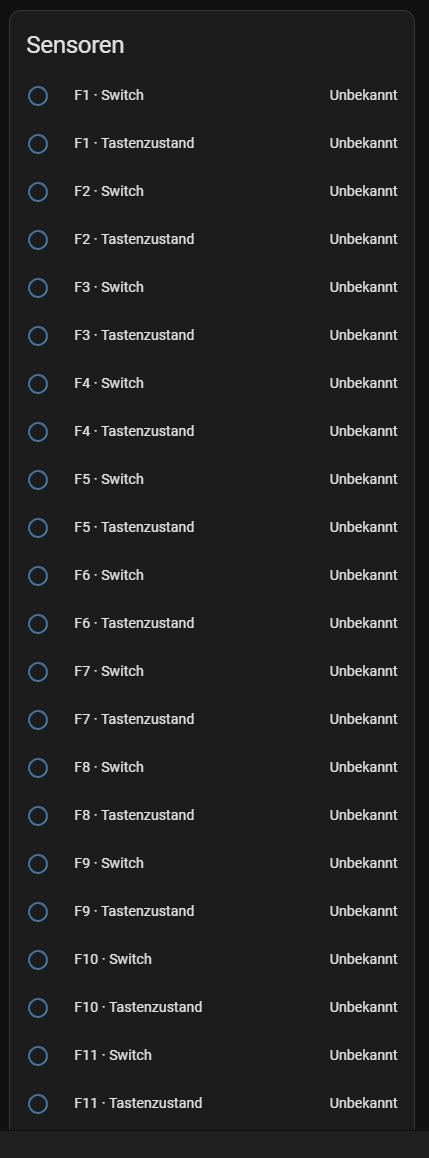
In the user screenshot, Switch is on after operation, and pressed state is off after release. Unknown values can occur before the first received state message; that alone does not prove a broken input detector.
Before the first state messages
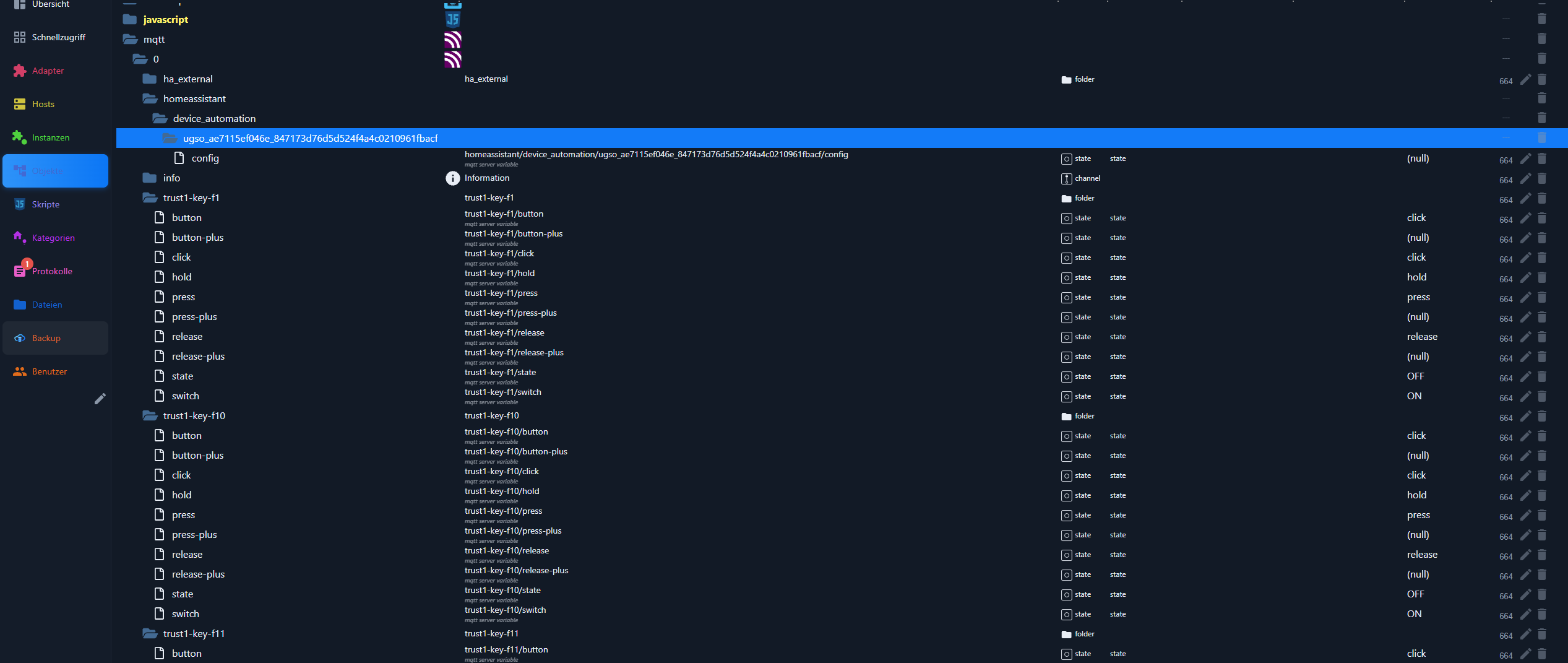
In ioBroker, separate states appear below the MQTT adapter when each topic is first received. The practical screenshot shows simple values: press, release, click, hold, ON and OFF. Plus channels show (null) after their empty reset in this setup. That is expected; the state object remains. A double-click state appears only after an appropriate message is actually sent. Old state objects containing the former JSON event are not automatically changed. Discovery configuration messages intentionally remain JSON.
Stream Deck and similar devices
The integrated python-elgato-streamdeck 0.10.0 driver includes models such as Original/MK.2, Mini, XL, Neo, Pedal and Plus. This describes driver scope, not completed physical hardware testing by this project.
- Display keys: custom icons/text, device brightness, MQTT state feedback to change an icon, and targeted display commands.
- Keys: Press/Release, click/double-click/hold, switch and pressed state as above.
- Dials, where present: rotation direction and presses as input.
- Touchscreen, where present: touch events; no freely designed touchscreen editor.
- Pedal and other non-display models: input, but no display-key icons.
- Up to eight independent pages per deck with navigation keys; additional profiles remain open. Animated key icons are implemented.
Graphical editor and compact key list
The Stream Deck tab stays visible offline and retains its editor and last grid. Enable the device and save, then select a key to edit its label, icon, background image, text position and colours. The pressed state supports a second icon and separate text/background colours. Top/bottom labels reserve space beside the fitted icon. Previewing sends no MQTT action. Save afterwards.
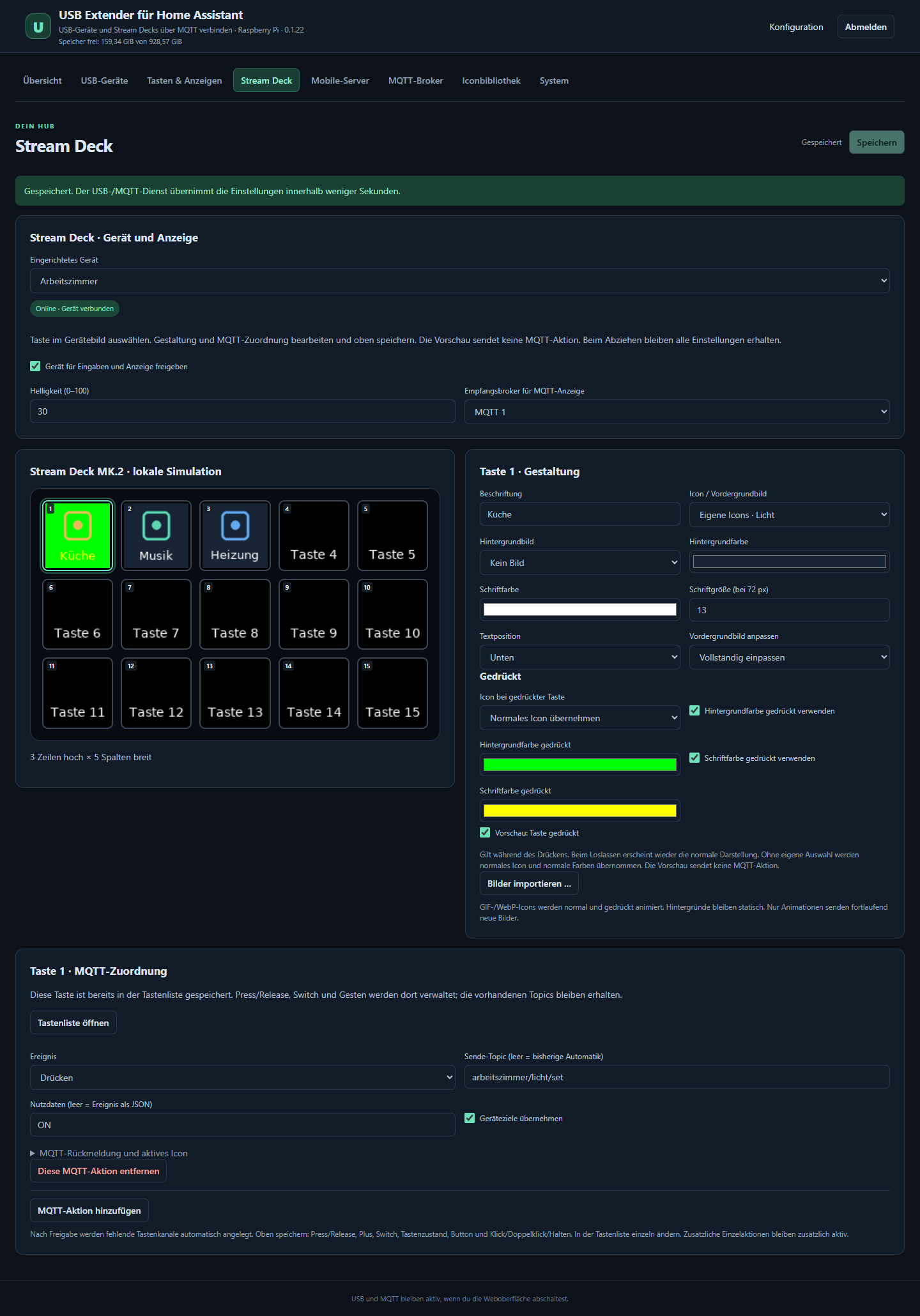
This image is a local browser demo, not a hardware test. In Tasten & Anzeigen, collapsed rows show Device – Key – Name; only one key is expanded at a time. Speichern saves all pending changes; Abbrechen discards changes to that key only. Indicators identify unsaved changes. Bearbeiten opens advanced MQTT and timing options.
Pages and navigation on the deck
USB / Virtuelle Geräte groups USB devices and paired virtual Mobile decks. Each phone/tablet keeps its own pages, artwork and assignments.
- In Stream Deck, choose Neue Seite to add up to eight pages per device. Key numbers continue: 1–15 then 16–30 for a 15-key deck, or 1–64 then 65–128 for 8×8. The device/Android app still supplies the grid.
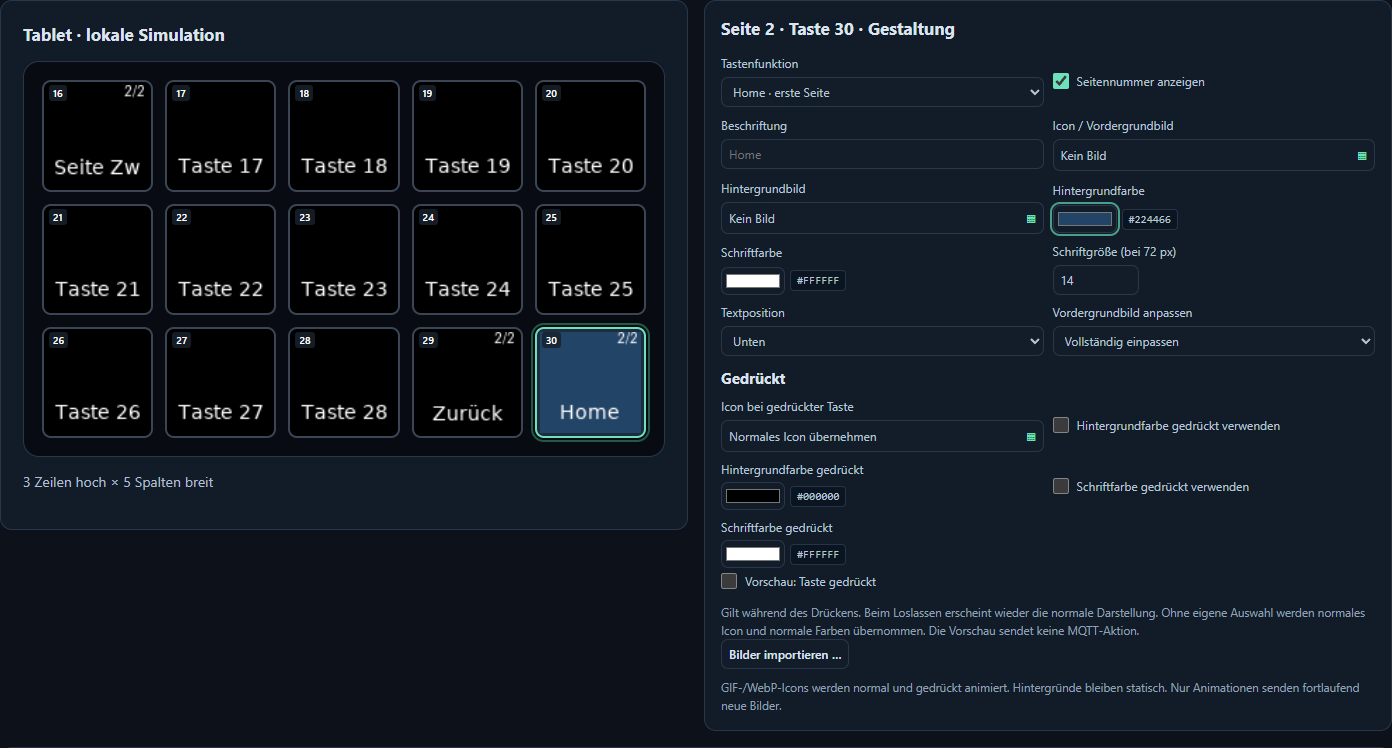
- Select a key. Under Gestaltung → Tastenfunktion, choose MQTT, Vor (next), Zurück (previous), Home, or Gehe zu (go to) with a Zielseite (target page). After Speichern, navigation works on the tablet without MQTT.
- Seitennummer anzeigen adds a page counter. Home returns to page 1; next/previous stop at the boundaries. Editor navigation changes only the preview, not the actual page displayed on the device.
- Aktuelle Seite löschen removes a page's assignments after confirmation; page 1 is protected. Save to apply. Remaining IDs/topics stay stable even if displayed numbers change. Go-to targets follow their pages when renumbered; deleting the target redirects that key to page 1.
Navigation preserves existing MQTT assignments; switching back to MQTT enables them again. New-page topics include a stable page component, e.g. tablet-page-2-key-0/press; existing page-1 topics are preserved. A service restart opens page 1. Page changes clear held keys/pending click sequences; feedback for another page cannot overwrite the visible page. Artwork controls, especially colour fields, are more compact.
Stream Deck Mobile: optional and experimental
- Enable Mobile-Server, enter the reachable Pi address and port (default 28198) and save.
- Choose Kopplung starten · QR-Code and scan using Add computer in Android.
- Compare the six-digit fingerprint. Only if it matches, click Gerät vertrauen under Mobile-Verbindungen. Trust remains saved.
- Open a deck in Android, enable the Mobile device in USB Extender and save. Assign its appearance and MQTT in the Stream Deck editor.
- Set rows and columns in Android. The editor follows the reported grid up to 8×8; there is no editor-side grid override.
The Mobile service runs independently of the web service. Pairing requires the web interface; afterwards it may be stopped. A local WebSocket port is used, without cloud/Bonjour discovery or changes to the app's Pro purchase entitlement.
Mobile-Verbindungen shows image/metadata counters, ping/pong and the last disconnect. For unchanged static keys, image counters should stop increasing. Keepalive maintains the connection without new images; animations intentionally send frames. The user confirmed pairing, icons, colours and 8×8. The 15-minute navigation/idle test on a real tablet documented below has passed.
0.1.28: successful 15-minute test
Mobile images are sent in small batches: at most four images per loop with a soft 25-ms work budget. Input and heartbeat handling run between batches. An in-progress socket send can take longer; the heartbeat timeout remains 20 seconds. Disconnect logs now include Ping/Pong, the last packet type/age and queued images, without message contents or credentials.
On 22 November 2026, a real SM-T580 with an 8×8 grid and two pages was observed for 900 seconds: repeated next/previous navigation, then about 14 minutes idle. The user started the read-only SSH monitor; its 16 samples and final journal were inspected directly.
| Measurement | Result |
|---|---|
| Interval on the Pi clock | 11:39:17–11:54:17; duration controlled by a monotonic timer |
| Tablet connection | Open and authorised in all 16 samples |
| Ping/Pong | 56/56 → 232/232; all 176 additional pings answered |
| Idle | 1,228 images / 19 metadata packets unchanged from minute 1 |
| Final journal | No new heartbeat timeout, disconnect or service restart |
One extra “connection open” entry does not identify a device; tablet counters keep increasing without resetting. Full readings, German report. This interval passed. Screen-off, background operation, other networks and physical Stream Decks were not tested here; the result does not retrospectively prove the cause of every earlier disconnect.
Icon library, animation and package import
Visual picker instead of long dropdowns: Normal/pressed icons, backgrounds and MQTT feedback share one picker. Expand a package, search and select an icon; choose Übernehmen or double-click. Abbrechen/Escape preserve the previous choice. Use Speichern afterwards. Only 48×48 PNG thumbnails are loaded, using the first animation frame, with at most 96 visible tiles per package page. The Pi generates them on demand in icons/.cache/thumbnails/; the Pi and authenticated browser reuse the cache.
Identical icon IDs/content appear once per package; alternative filenames remain searchable. Originals and stored IDs are not deleted or rewritten. Distinct styles and black/white packages stay separate. MDI-Favoriten hinzufügen · 40 Icons optionally imports the bundled SteelBlue pack with 20 on/off pairs. Nothing is installed or mapped to MQTT automatically; choose normal/pressed icons or feedback mappings yourself.
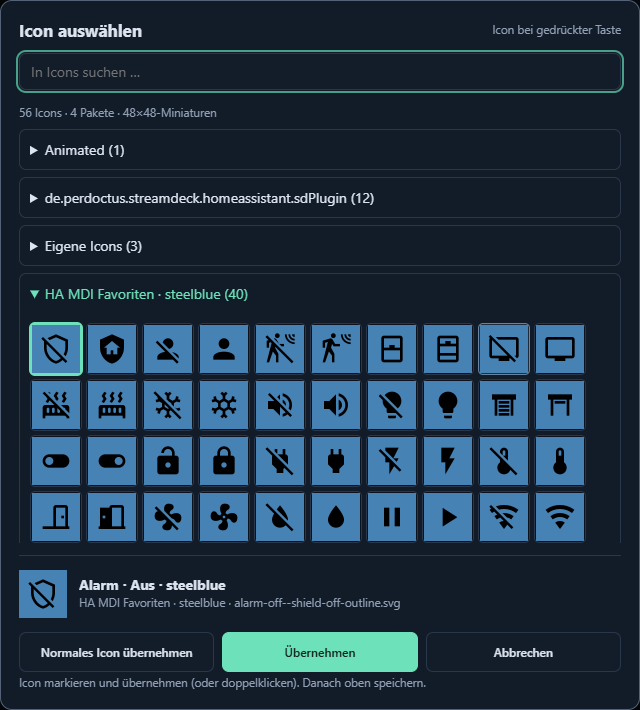
Expand packages individually or search package names, filenames and subfolders. Hover/focus displays a filename and preview. 48×48 thumbnails use compact 52×52 tiles; the licence appears once in the package header. Free and total storage are shown in the page header.
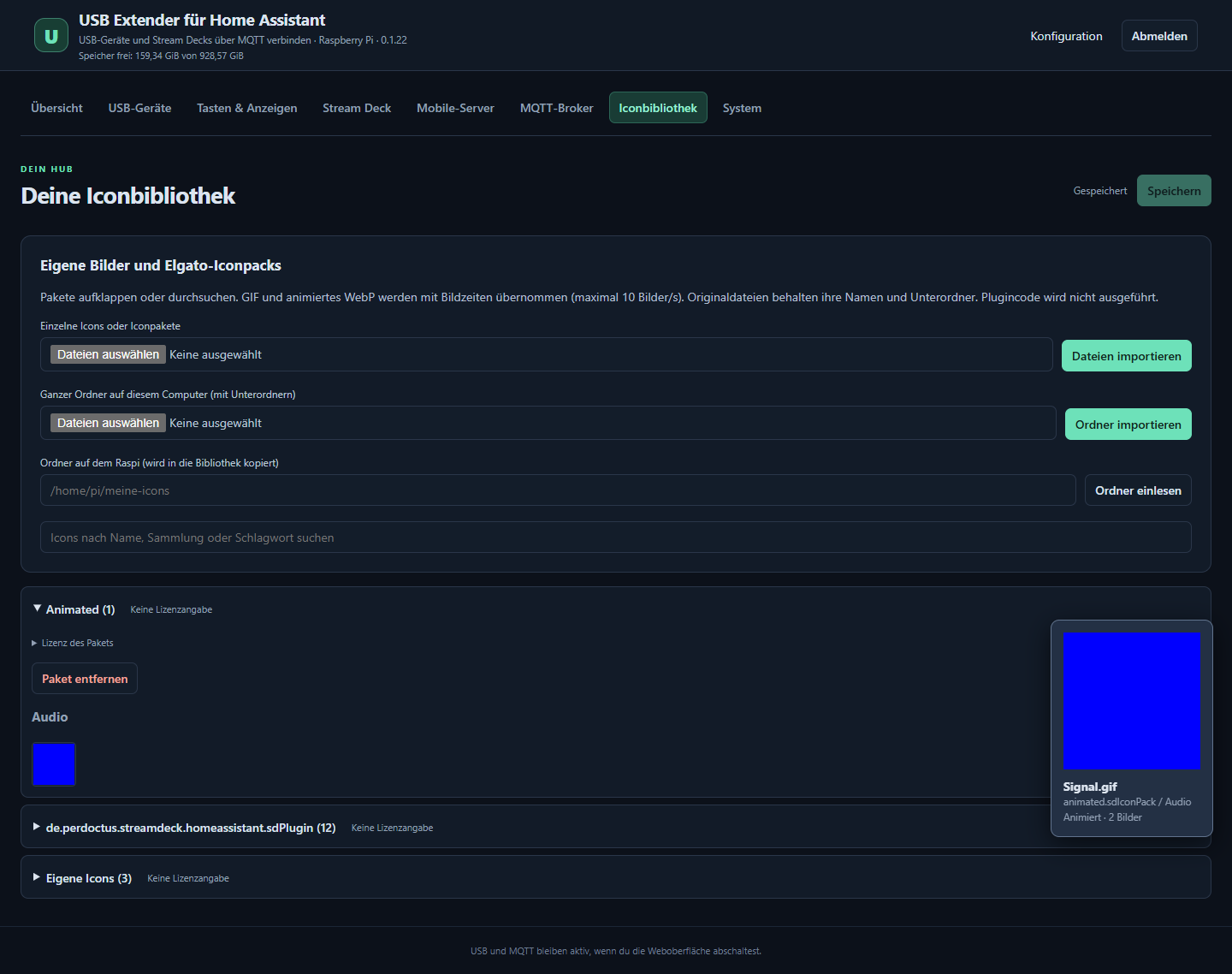
Import individual images, browser folders, folders on the Pi, and local ZIP, .streamDeckIconPack or .streamDeckPlugin packages. Plugins contribute images from supported image folders only, never executable code. Supported JSON metadata provides the package name; otherwise the folder/archive name is used. Original filenames and subfolders are preserved. No automatic Marketplace download; respect usage rights.
PNG/JPEG and static SVGs are supported. GIF/WebP animate in normal and pressed states, up to 120 frames and 10 frames/s. SVG animation is not played; backgrounds remain static. Real hardware playback needs model-specific verification.
Originals: /var/lib/ugso-usbhub/icons/IconPacks/; index: icons/index.json; derived previews: icons/.cache/. Package deletion first creates a backup and blocks packages referenced by saved assignments.
Since 0.1.22: Save the index once at the end and generate previews/animation data on demand. Browser folders upload as one ZIP, preserving multiple packages and their paths. Progress uses actual server processing counts. Finish an active import before installing an update.
| Single local Windows PC comparison | Before | 0.1.22 |
|---|---|---|
| Itsyhome, 240 real PNGs | 4.262 s | 0.395 s |
| 6,800 synthetic PNGs | 458.323 s | 10.464 s |
Index writes: previously 240 or 6,800, now one per import. These are PC measurements, not Pi/SD-card timings. During the previous 6,862-icon import, the login page reappeared at 2,898 without an error message. After installing the update, the user reports that it works again. Completion of all 6,862 icons has not yet been confirmed.
For other similarly shaped devices, the keyboard part may already work through HID. LCDs, touch and vendor-specific commands may require a separate adapter. Please test and report an exact model rather than assuming full compatibility from its appearance.
Stop the web UI and back up
sudo usb-extender web start
sudo usb-extender web stop
sudo usb-extender web status
sudo usb-extender web enable
sudo usb-extender web disable
sudo usb-extender backup
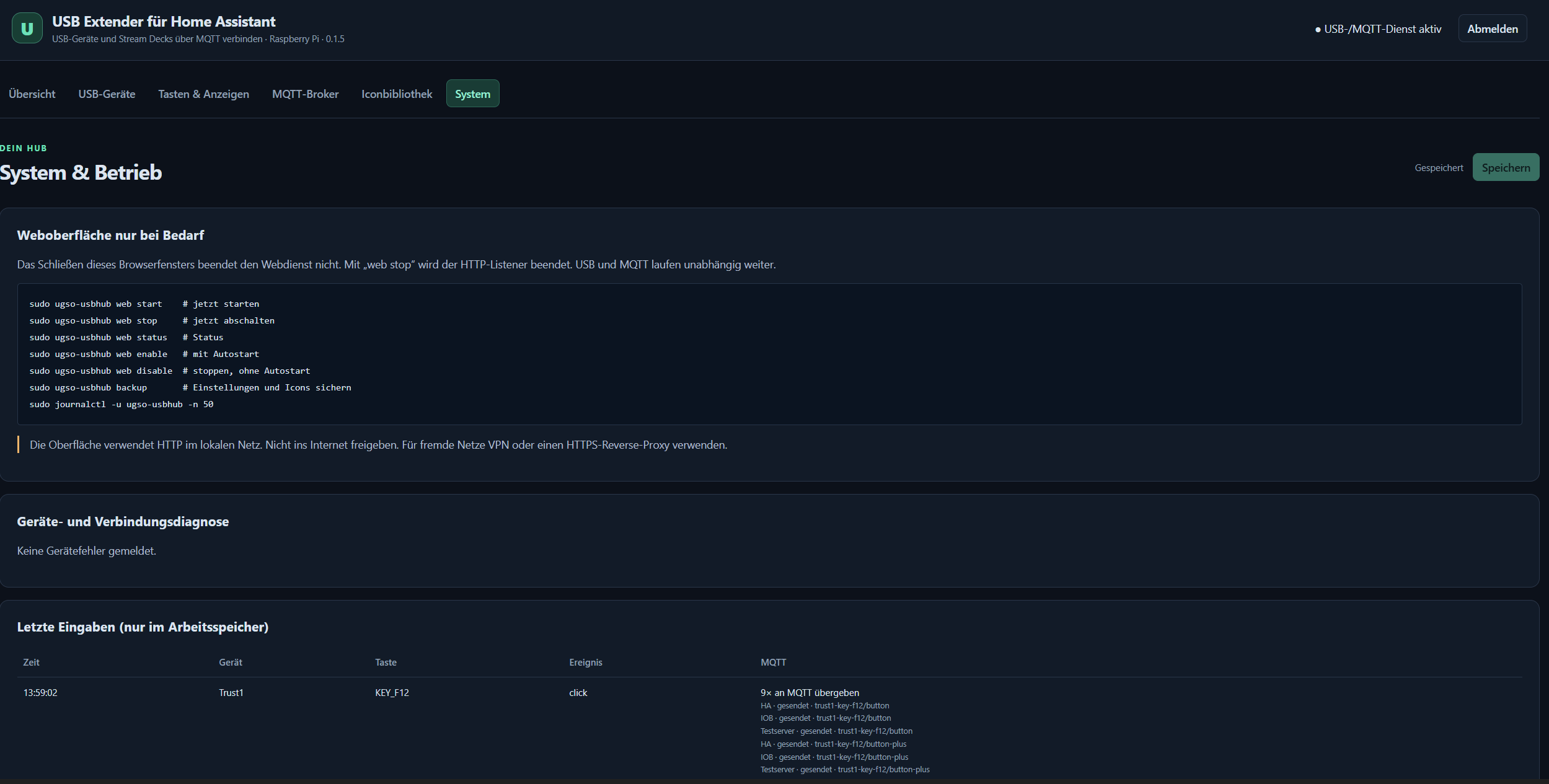
sudo journalctl -u ugso-usbhub -n 50web stop closes the HTTP listener; merely closing the browser does not. The USB/MQTT service continues. Settings, icons and switch values live under /var/lib/ugso-usbhub/. The previous ten configuration versions are backed up automatically; a full CLI backup also includes icons and switch values. Do not upload backups publicly.
What has been demonstrated?
The user screenshots show 0.1.5, three broker profiles reporting online, learned function keys, HA states and individual ioBroker data points. The event list shows publication to HA, IOB and Testserver. That publication indication alone does not prove receipt at every broker; the HA/ioBroker screenshots provide additional visible evidence. This does not test every function on every device.
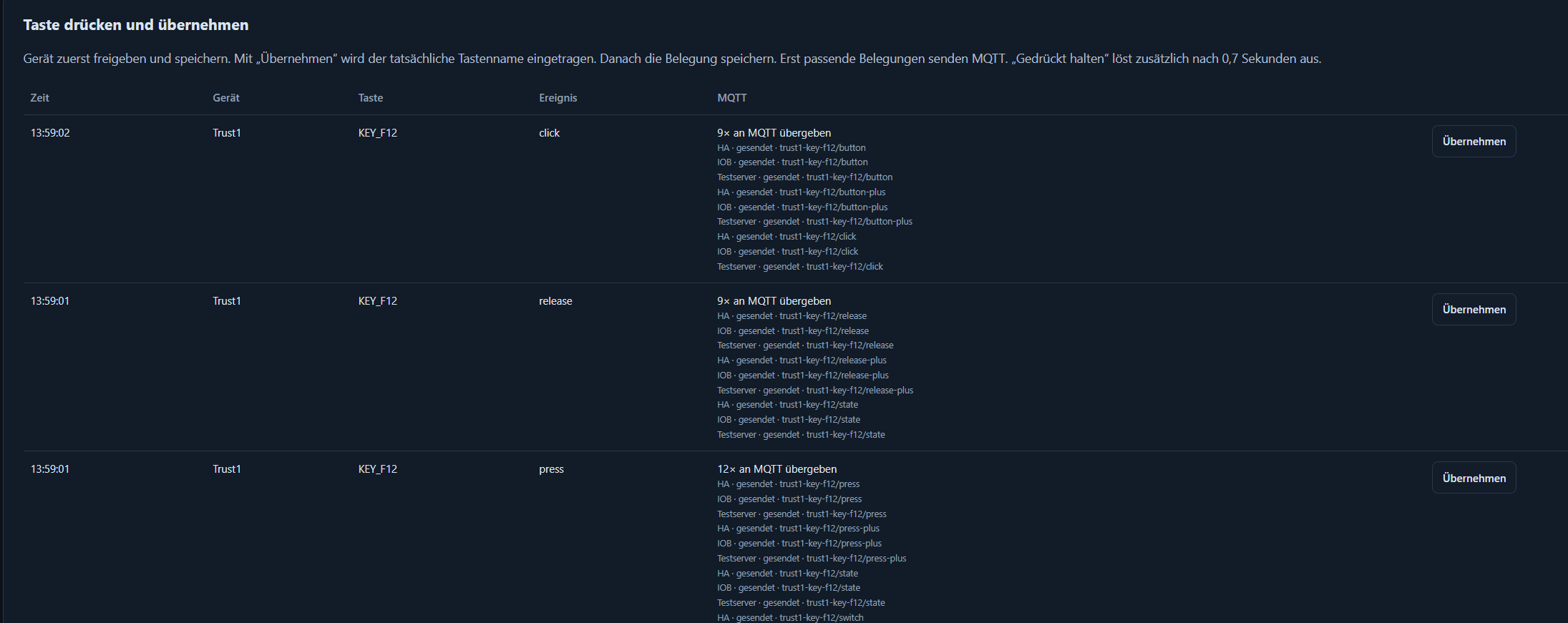
Version 0.1.28 passes 168 local Python tests plus JavaScript/DOM and Chrome checks for pages, saving, mobile layout, icon selection, packages and animation. The real 15-minute tablet test above has also passed. New/delete page, Home and Go to have local coverage; their full hardware verification and physical Stream Deck tests remain further checks.
Test your hardware and send feedback
Do you have a Stream Deck, similar LCD-key device, macro pad or USB pedal? Please test it and report results on GitHub. Bug reports and contributions are welcome.
Include model/revision, Pi model, OS and app version. Distinguish inventory listing from actual key codes. Report press/release, click/double-click/hold, icons/text, brightness, dials, touch and replug separately; explicitly mark untested features. Start with a harmless MQTT topic without real device actions. Inventory/event screenshots help. Do not publish passwords, tokens, config.json or backup archives.