
Function plan
Invert a signal in the function plan
1. Open the plan and add the blocks
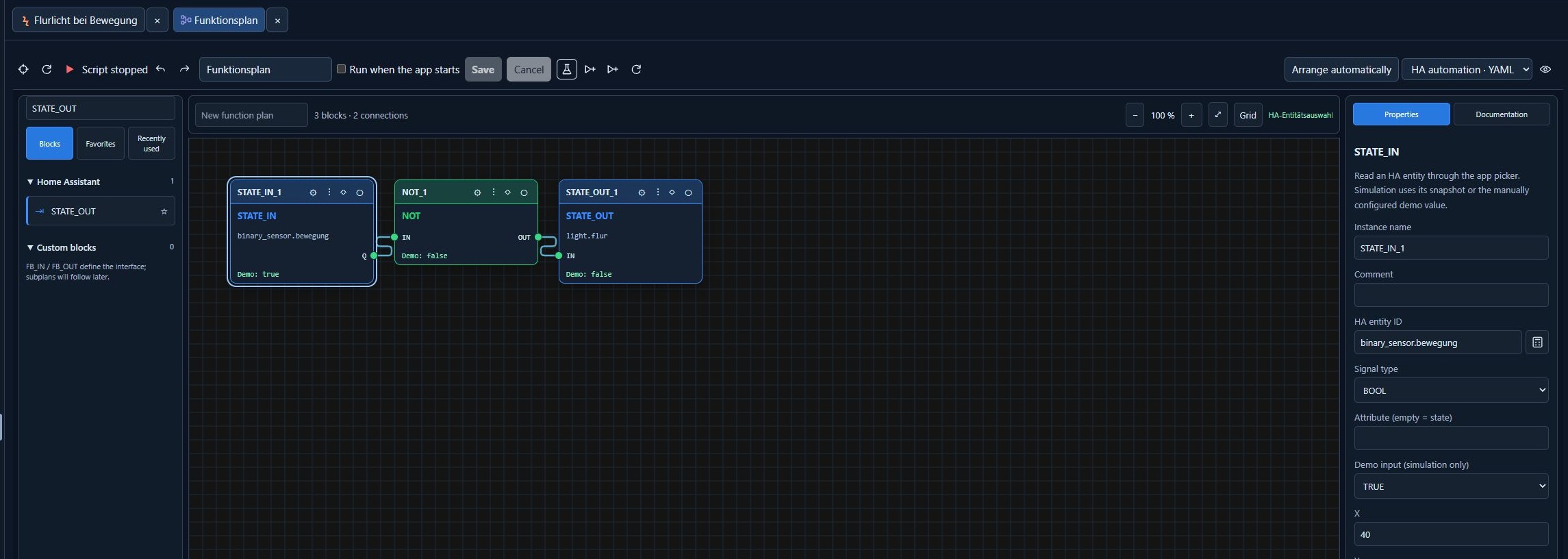
Open the function plan from the project tree. In the palette search for STATE_IN, NOT and STATE_OUT, and click each to add it. Drag each block by its header to place them left to right in that order.
2. Configure the input
Open the settings for STATE_IN using the gear. Enter the entity ID of your test sensor or helper. The demo uses binary_sensor.bewegung. Set the signal type to BOOL and the demo input to TRUE.
3. Configure the output
Open the settings for STATE_OUT. Enter a suitable target entity ID. The demo uses light.flur. Leave output mode set to BOOL. A Boolean signal is either TRUE or FALSE.
4. Wire the pins
Drag from the round Q output of STATE_IN to IN on NOT. Then drag from OUT on NOT to IN on STATE_OUT. The canvas header should show three blocks and two connections.
5. Run the simulation
Click Simulate (the flask icon). The input shows Demo: true. NOT inverts the value, so STATE_OUT shows Demo: false. The simulation uses demo values and leaves the real light unchanged.
6. Check the opposite case
Set the demo input to FALSE and simulate again. The output should now show true. Use the reset simulation button to clear simulation state. Save the project to keep the plan.
If a wire is rejected, check both pin types. If the simulation reports a missing entity ID, check the input and output settings. Use the simulation button here. Play in the project toolbar starts the runtime.
Features
Canvas
Drag, move and connect blocks. Zoom or fit the whole plan.
Parameters
Select a block to set a timer duration or counter target.
HA bindings
Choose an entity for the signal and an approved HA action for the output.
Simulation
Toggle inputs and follow signal values at the pins.
Breakpoint and single step
Pause and advance one scan to inspect the values.
Auto layout and pinning
Arrange the plan while keeping pinned blocks in place.
Play and live diagnostics
Start the saved plan and inspect live values and errors.
Persistent counters and latches
Enable storage to keep values across app restarts. Editing the plan can reset them.
If something goes wrong
If a connection is refused, compare the types of its pins.