
SVG LineBox Math
Practical example: Combining two positive power readings
An inverter may expose charging and discharging power as two separate, positive readings. A single power display needs a signed result that distinguishes the direction of flow. SVG LineBox Math calculates their difference locally in the display browser. No additional Home Assistant template sensors or automations are needed: Home Assistant supplies the readings and the display computer performs the calculation. The existing connection and value transfer still generate load.
Editor: Read and calculate values
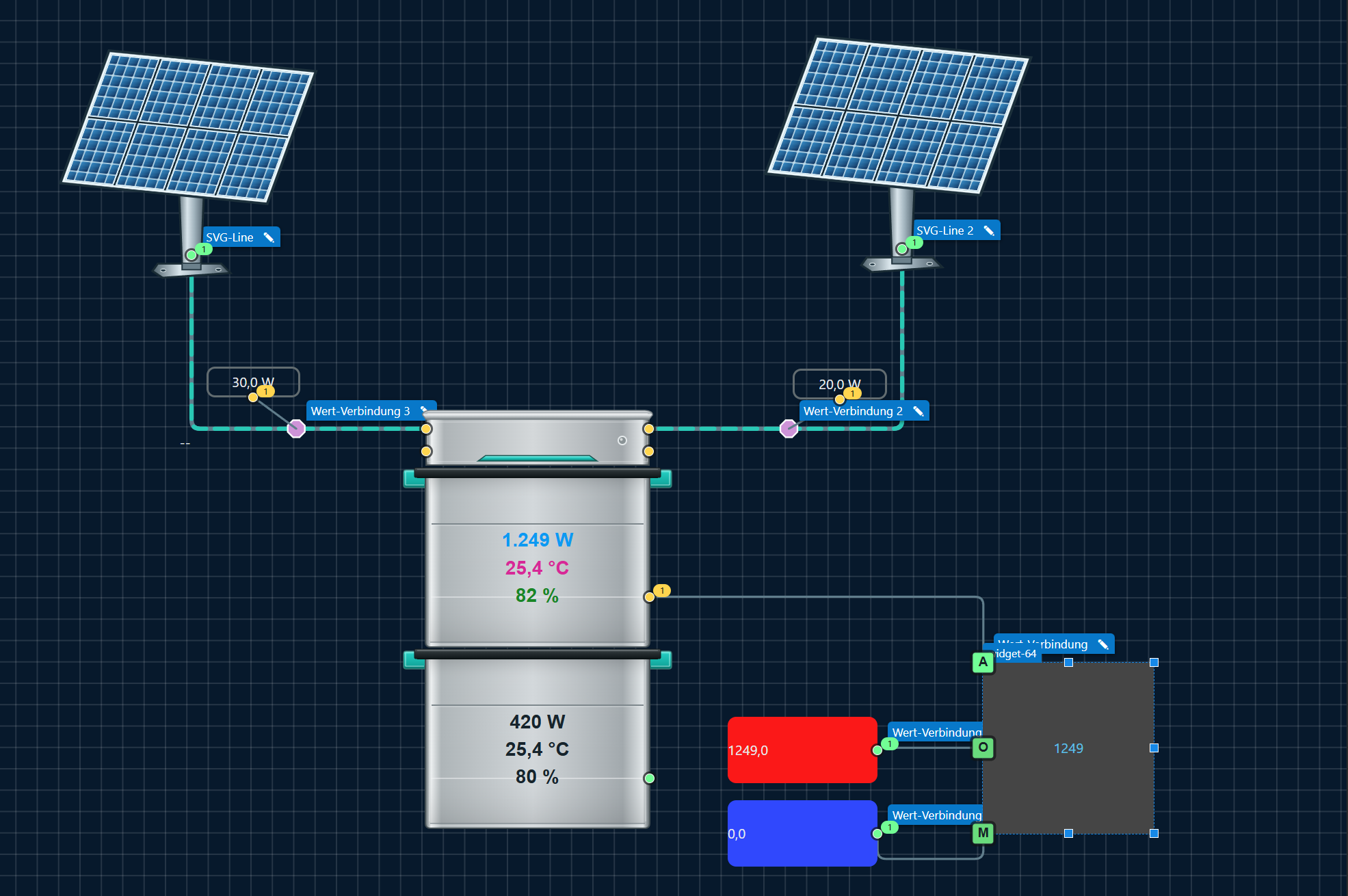
Colored helper widgets make the processing easier to follow. Red and blue distinguish the two positive inputs; the gray Math box displays the result. Port letters and handles are editor aids.
| Widget | Purpose in this example |
|---|---|
| Two Number widgets, red and blue | Read one charging or discharging sensor each and forward its value through the enabled data flow output point. Colors distinguish sources; they do not assign a sign. |
| Value connections | Connect the Number outputs to Math inputs O and M, then forward output A to the power display. These connections are invisible in runtime. |
| SVG LineBox Math, gray | Subtract the two positive inputs and provide the signed power result at A. |
| Industrial battery display | Show the calculated power. Temperature and charge level remain separate readings and are not part of this subtraction. |
| SVG lines | Show energy flow between the solar modules and battery. They can be animated; their direction must match their start/end assignment and sign convention. |
| Number displays beside the solar lines | Show each solar power reading; these are separate from the two battery calculation inputs. |
| Industrial solar modules | Represent the two PV sources graphically. |
The editor screenshot connects O = 1249 and M = 0, with 1249 shown in the Math box. The corresponding difference is O - M. Set O and M to Input and A to Output. Enable calculation 1, select Custom formula, enter O - M, and set Outputs to A. Leave Pass result internally to input disabled. Enable both Number output points and connect those exact ports.
Sensor assignments define the sign convention. If O supplies charging power and M supplies discharging power:
| Charging O | Discharging M | Result O − M | Meaning |
|---|---|---|---|
| 1249 W | 0 W | +1249 W | Charging |
| 0 W | 420 W | −420 W | Discharging |
| 0 W | 0 W | 0 W | No net flow |
Swapping the sensor assignments reverses the meaning of the sign. Use M - O for the opposite convention. When both inputs are positive, the difference represents net flow, not both individual readings. An actual zero is valid; missing or invalid readings are not automatically replaced with zero.
Runtime: Display without helper widgets
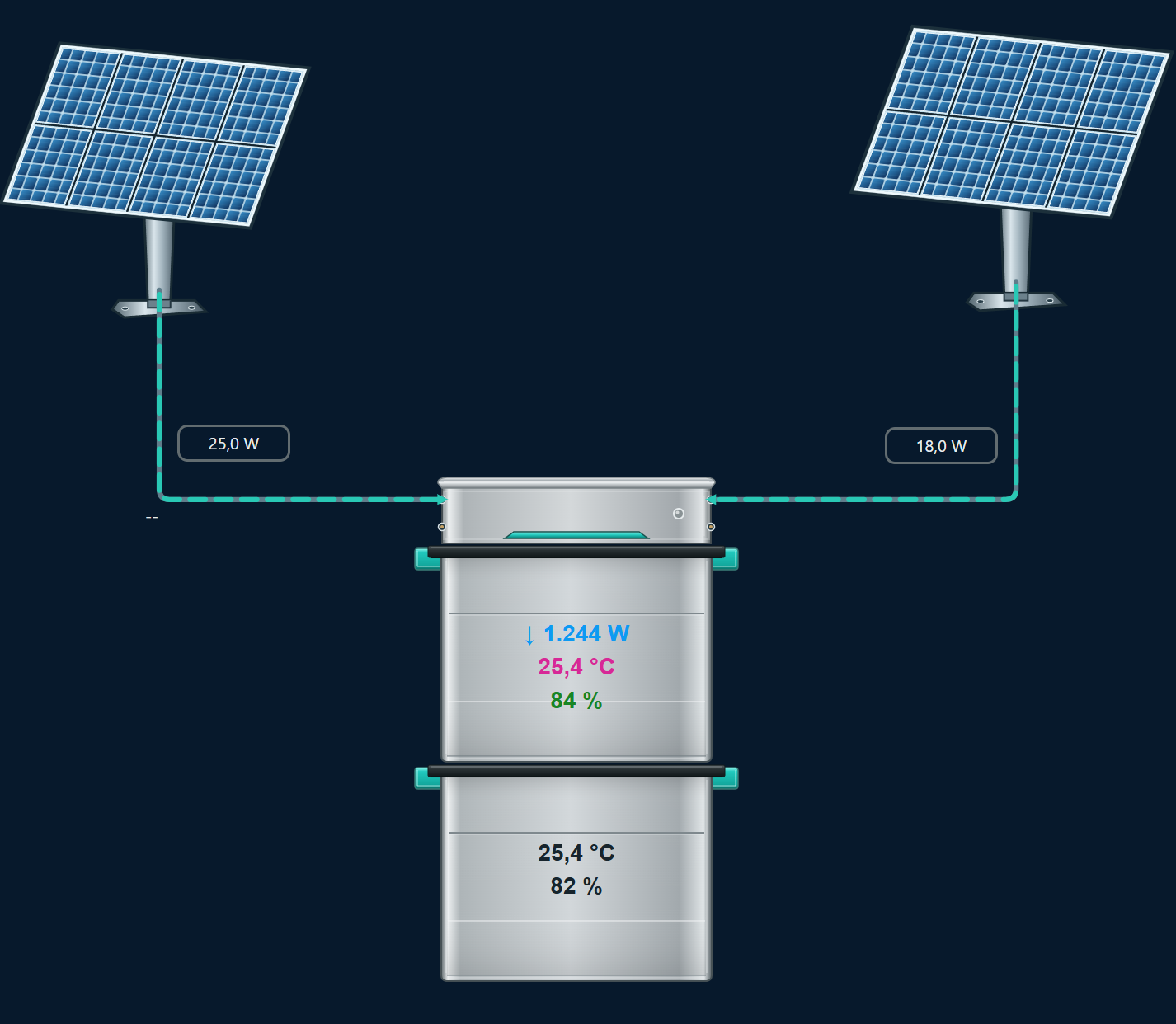
Runtime presents the finished visualization. Battery power is blue, temperature magenta and charge level green. The direction arrow helps identify energy flow. The screenshots were captured at different times, so their readings need not match.
From Studio 0.1.287, check In Runtime verstecken (Hide in runtime) at the top of the WIDGET tab for both helper Number widgets and the Math box, then save the project. They remain visible and editable in the editor but disappear from the display. Calculations and value forwarding remain active. The visible power displays, battery elements and SVG lines remain enabled.
Each open display calculates locally in its own browser. Local value forwarding creates no additional HA entity and does not automatically write the result back to Home Assistant. Closing the display or its browser stops that local calculation.
Alternative assignment: Battery → inverter
A Number widget can supply an entity or preview value to Math. Enable its output point under Data flow, then connect that exact port to an active Math input. Use Value connections or, from 0.1.285, SVG lines with explicit z-index −100 or lower for invisible runtime wiring. Hiding the line does not stop value forwarding.
For P into the battery and O out of the battery, with a battery → inverter line:
| Setting | Value |
|---|---|
| O | Input; sensor.hyper_2000_eg_1_output_pack_power |
| P | Input; sensor.hyper_2000_eg_1_pack_input_power |
| A | Output |
| Calculation 1 | Enabled; Custom expression |
| Expression | O - P |
| Outputs | A |
| Internal handoff | Disabled |
Both sensors may provide positive numbers: O = 0, P = 1252 gives −1252 W (charging); O = 150, P = 0 gives +150 W (discharging). Simultaneous readings produce net flow. A real zero is valid. “Input O: value missing …” means no valid value reaches that input: enable the source output, verify its selected port and connect the line target to O. Missing values are not silently replaced with zero.
From 0.1.141, Hide in runtime under Calculation hides only the display; all calculations and output handoffs remain active. Value calculation in HA Grafik – Data flow uses the same logic with this option enabled by default. Value converters and invisible Value connections can supply its inputs.
From Studio 0.1.138, the enlarged dialog contains four independent calculations. Each has its own enabled state, formula or average mode, output list and result preview. Existing projects retain their previous calculation and outputs as calculation 1; calculations 2–4 and all internal input handoffs start disabled.
Size, icon and colors
From 0.1.140, the WIDGET tab provides the same five CSS sections as basic widgets: General CSS, CSS Font & Text, CSS background, CSS borders and CSS shadow and spacing. Configure positioning, display, opacity, fonts, text alignment, background images, borders, corner radius, shadows, padding and margins. LineBox Math honors font size, alignment, corner radius and padding. Rounding retains the geometric docking positions; large radii may move the visible border away from corner ports. Additional inline CSS still overrides the corresponding fields. The CSS tab contains global project CSS instead.
From 0.1.139, width and height can be set independently between 32 and 2000 px, in the calculation dialog or using editor resize handles. Rectangular shapes are supported. The 16 ports retain their relative positions, with perpendicular line entry. Small widgets use smaller editor markers to prevent overlap. A larger editor view is recommended for assigning letters comfortably; runtime hides the markers.
Under Appearance, choose an optional icon, its size (8–512 px) and color, plus background, border and result text colors. Icons fit the available space. Recoloring requires a tintable icon; multicolor raster images retain their image colors. Disable Show result without stopping calculations or output handoffs. For 32 × 32 px, an icon with hidden result text is useful.
Additional CSS style accepts supported inline declarations such as border-radius: 4px; opacity: 0.8;. It applies after the color fields and can override them. URLs and executable expressions are not allowed.
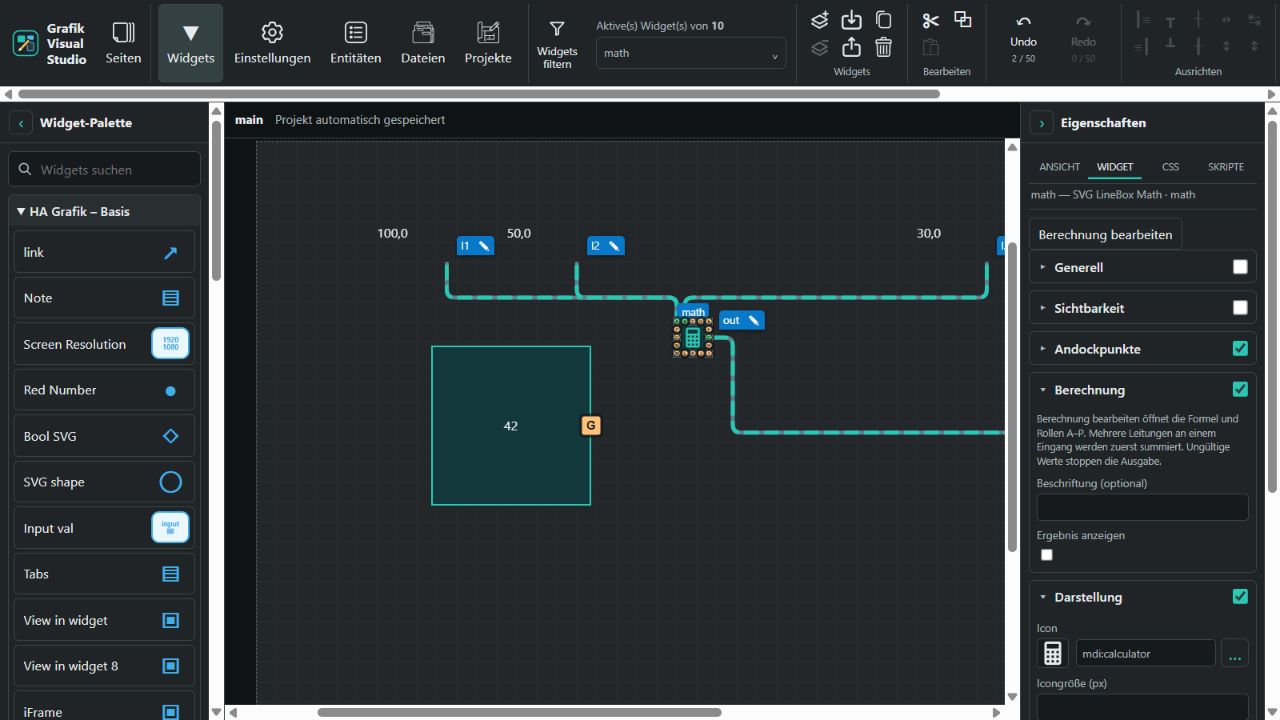
Small editor example with an icon and hidden result text.
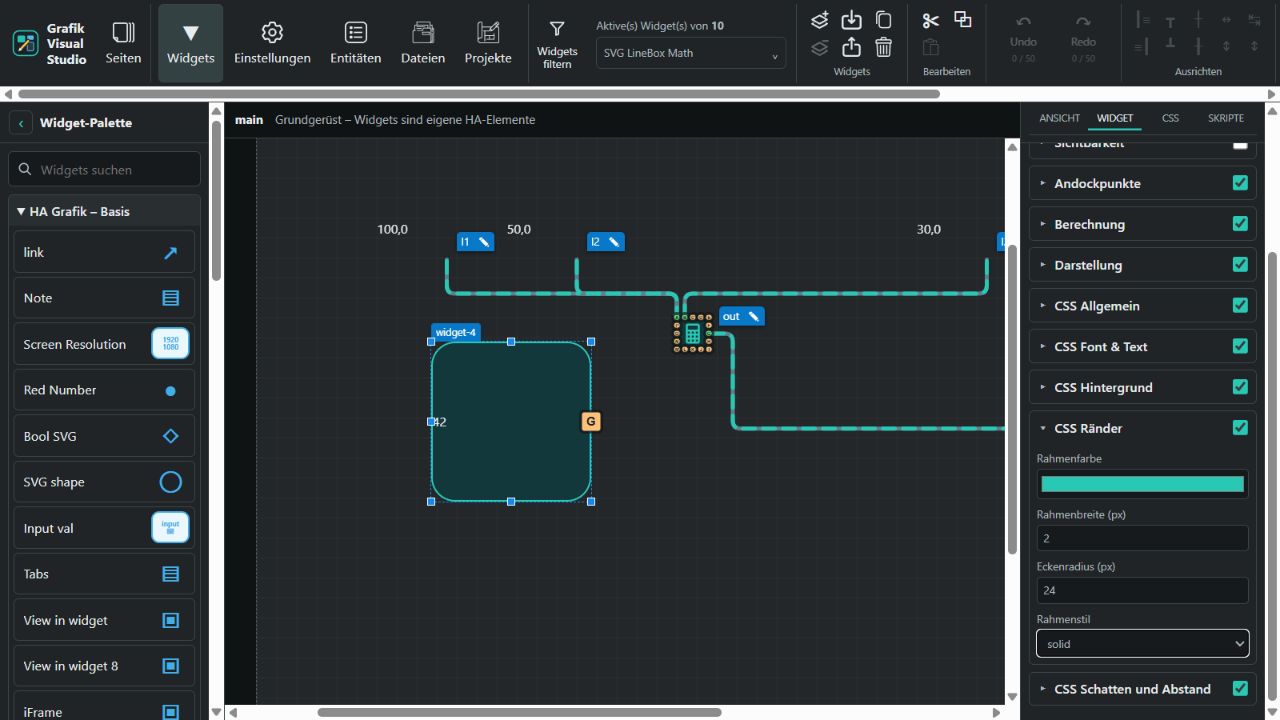
The CSS Borders section sets the corner radius to 24 px. Visible editor ports keep their positions.
Runtime presentation
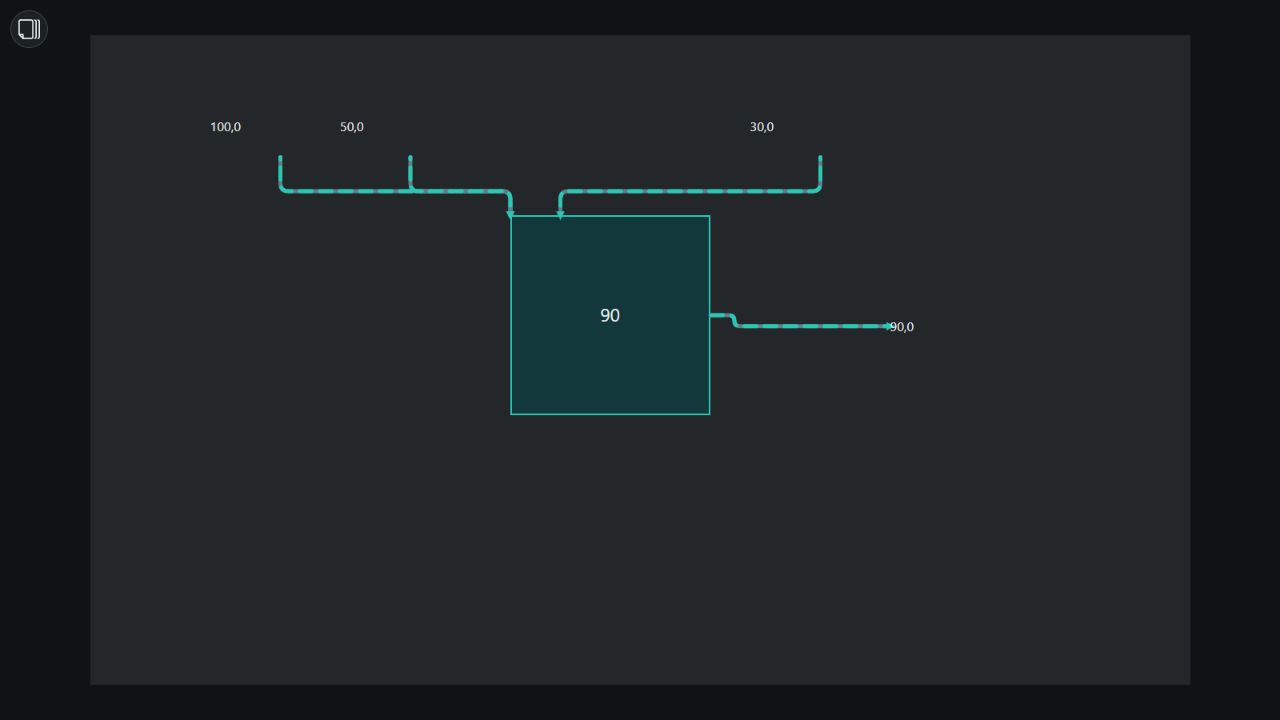
Runtime test scene: the square and its result remain visible, with right-angle incoming/outgoing lines; editor port letters and selection handles are hidden. The result follows the configured calculation and the sum per occupied input port.
Four calculations and output assignments
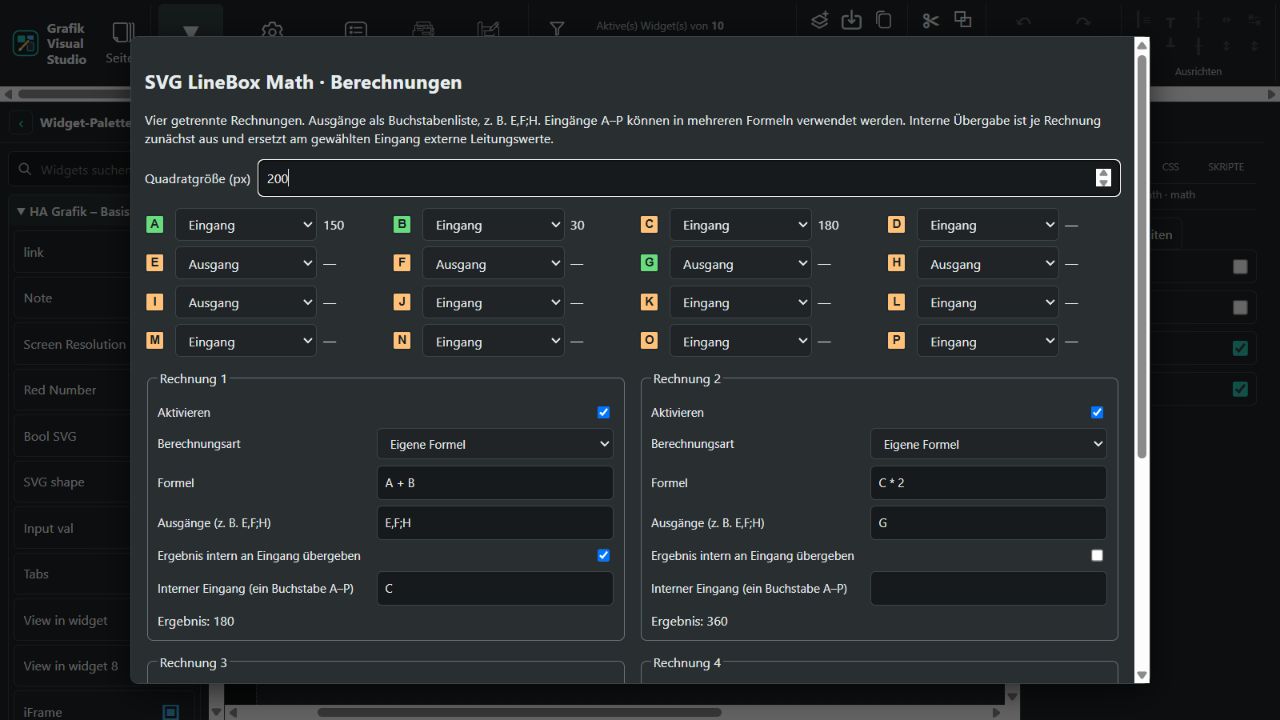
The current screenshot shows separate calculations and an enabled internal handoff to C. Calculation 2 can therefore process the result of calculation 1 directly.
Calculation on the display computer
Calculations run in the browser of each display computer. Home Assistant supplies entity values; SVG LineBox Math calculates results and passes them to other widgets within the visualization. Chained calculations with multiple inputs and outputs require neither additional HA entities nor HA automations for this processing.
The display computer handles calculation and rendering. Each open display calculates its own visualization. Home Assistant still handles the connection and entity-value exchange, so this communication continues to generate load. Internal docking handoffs do not automatically store local Math results in Home Assistant.
Calculations are available only while the visualization is open and its browser is running. Processes that must continue reliably when the display is switched off still require a server-side calculation or HA automation.
Configuring outputs
First configure the port roles at the top. For each enabled calculation, enter the destination letters under Outputs (e.g. E,F;H). Commas, semicolons and whitespace separate the letters; lowercase letters are also accepted. E,F;H assigns the same result to outputs E, F and H. Each port must be an active Output. An input letter produces a warning, and conflicting assignments cannot be applied. An output can belong to only one calculation. Unassigned outputs provide no value.
Reusing results internally
Each calculation has an initially disabled Pass result internally to input option. Enabling it lets you select one active input letter under Internal input. Other calculations can then use that letter in their formulas. The internal handoff replaces external line values at the selected port; disabling it restores those connected line values. Only one internal result can supply a given input. Dependencies are resolved independently of calculation numbering.
Example with A = 150 and B = 30:
| Calculation | Formula | Outputs | Internal handoff | Result |
|---|---|---|---|---|
| 1 | A + B | E,F;H | enabled → input C | 180 |
| 2 | C * 2 | G | disabled | 360 |
| 3 | A - B | I | disabled | 120 |
| 4 | disabled | — | disabled | — |
A calculation must not pass its result back to an input on which it depends. Direct or indirect feedback and duplicate assignments are reported and rejected before applying changes. Average of all occupied inputs also includes internally assigned inputs; passing that average back into its own input set therefore creates feedback.
Arithmetic errors such as division by zero stop the affected calculation and its dependents. Independent calculations continue. Missing values matter only when the calculation uses that input; average mode requires valid values at all occupied inputs. The dialog displays per-calculation messages. Small screens use scrolling and stack calculation panels vertically.
Basics and a single-calculation example
The following screenshot shows the original Studio 0.1.137 dialog. Its calculation is retained as calculation 1 in the expanded dialog.
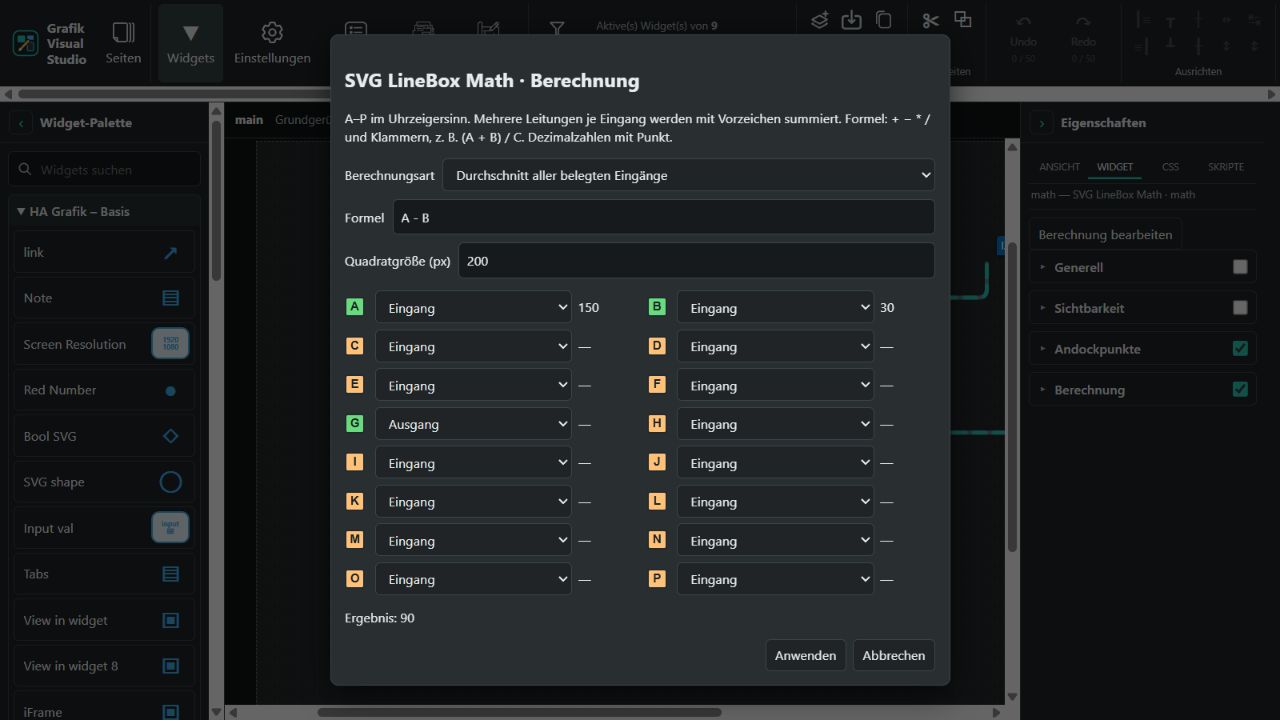
The screenshot shows the German calculation dialog with Average of all occupied inputs selected. Input A already contains the sum of its two lines (100 + 50 = 150), while input B supplies 30, producing 90. G is configured as an output and passes this result onward. Green letters A, B and G identify connected ports; orange letters have no connected line. An unconnected input shown as — is excluded from the average. This calculation mode disables the formula field but retains its previous expression.
From Studio 0.1.137, SVG LineBox Math is also available under HA Grafik – Spezial. Its square remains visible in both editor and runtime. Its 16 ports run clockwise from A at the top-left: A–E across the top, E–I down the right, I–M across the bottom and M–A up the left. Each side has three additional points between its corners. Connected editor markers are green and free markers orange, with contrasting letters; runtime hides the markers. Lines enter perpendicular to the edges. A/E enter from above, I/M from below; the remaining side ports enter through their respective edges.
Select the widget and open Edit calculation. Set width and height (32–2000 px), each letter's Off, Input or Output role, and the calculation. New docking points start disabled; assigning an input or output role in the dialog enables that point. The Docking points section can also enable all points together.
Custom formula supports +, -, *, /, parentheses, numbers with decimal points and letters A–P. Multiplication and division take precedence over addition and subtraction. Example: (A + B) / C. Multiple lines connected to one input first sum their signed values: A receiving 100 and 50 becomes 150; B receiving 30 gives 120 for A - B. Average of all occupied inputs counts each occupied input port once, producing (150 + 30) / 2 = 90; unconnected ports are excluded.
The preview shows input values and the result. Outputs pass the result internally to SVG-Lines, downstream LineBoxes and widgets with numeric docking input, without an additional HA entity. Missing or invalid connected values, unconnected formula inputs, division by zero and feedback cycles stop output. The widget then shows — with an error hint. Formulas are parsed without executing JavaScript. Changes apply only after Apply and support Undo.