
HA Grafik – Data flow
From 0.1.287, all widgets can be hidden using WIDGET → In Runtime verstecken (Hide in runtime). Save the project afterwards. A hidden Number widget still supplies Math inputs; a hidden Math box still calculates. The checkbox does not disable value sources and works independently of z-index. Everything remains editable in the editor.
Updates through Studio 0.1.285: SVG lines and Value connections support Line → Vertical starting position. Vertical orthogonal lines first run vertically, then turn left or right at target height. Point handles use a 6 px drag threshold and do not move a multi-selection. Hold Alt to move a docked line as a whole. Regular SVG lines at z-index −100 or lower are also invisible in runtime while retaining their values. They can connect Number → Math; see the setup and zero-value example in LineBox Math.
From Studio 0.1.141, the dedicated HA Grafik – Data flow palette contains three widgets. Calculations and conversions run in the browser on each display computer. Home Assistant supplies entity values; internal processing requires no additional HA entities. The visualization must remain open.
| Widget | Editor | Runtime |
|---|---|---|
| Value connection | Simple SVG line without animation, directed from start to destination | Invisible; continues passing values |
| Value converter | Widget and dedicated radio-button dialog with input/output types and preview | Always invisible; conversion remains active |
| Value calculation | Same editor as SVG LineBox Math, with four calculations and ports A–P | Invisible by default; calculations and outputs remain active |
Value connection and Value calculation internally reuse the SVG-Line and SVG-LineBox-Math types, preserving docking, movement, copying, project import/export and shared calculation logic. SVG LineBox Math also supports Hide in runtime. Disable this option on Value calculation if you want to display its calculation widget.
Connecting a source
Since 0.1.154, CSS General remains required for these widgets too; the other CSS groups are optional.
From 0.1.143, optional CSS groups are disabled by default on new data-flow widgets; Value calculation also disables Display by default. Calculation and conversion remain enabled. Enable these groups when needed; disabled CSS fields are omitted from exports. New Value connections have no arrowheads at either end. Previously saved widgets retain their settings.
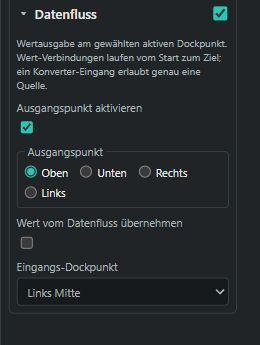
- On a widget with an entity or preview value, enable Enable output point under Data flow. Use the Top, Bottom, Right or Left radio buttons to select the center of that edge; right is the default. This single output works independently of Docking points and can be disabled. Set its separate color under Settings → Output point. The point is visible only in the editor; forwarding stays active in runtime. Widgets without an available value, such as plain borders, provide no value. Existing docking configurations are preserved; LineBox, LineBox Math and converters continue using their own ports.
- Add a Value connection: start at the source output and end at the converter or receiver input. Values always follow this direction, even without visible arrowheads; animation is disabled.
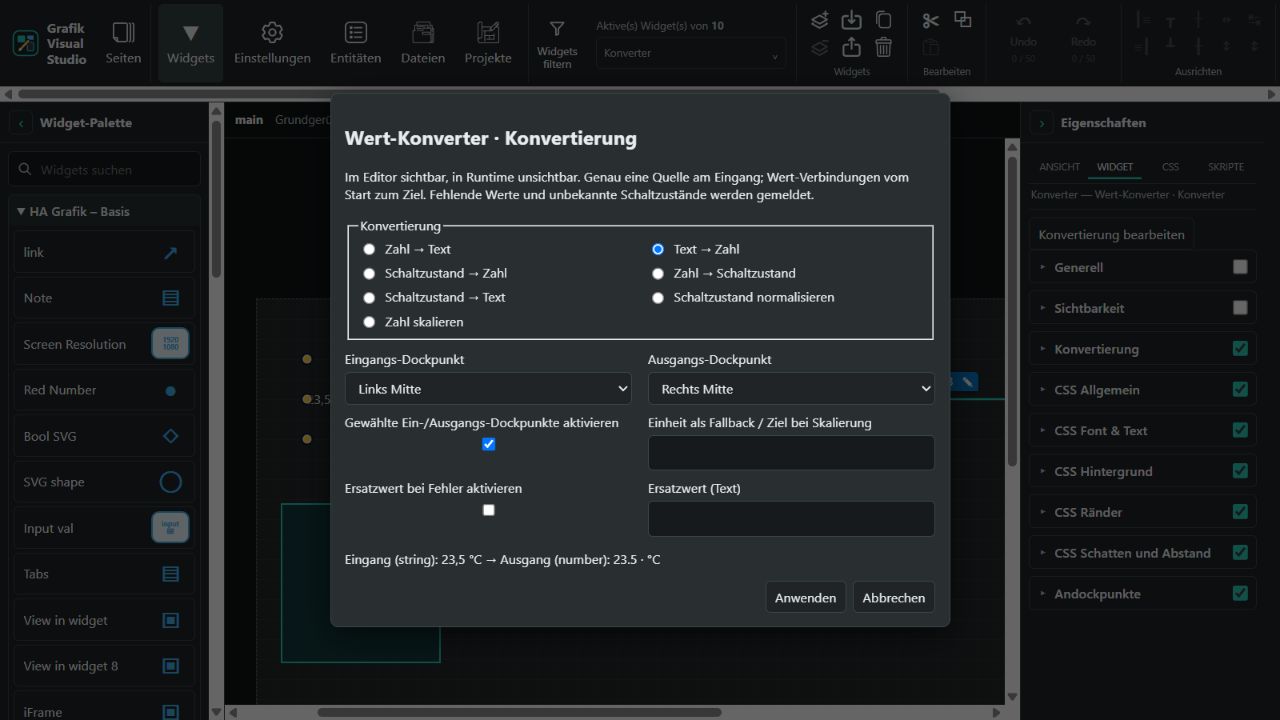
- Open Edit conversion, select the converter's input and output, and enable Enable selected input/output docking points. New ports remain disabled until explicitly enabled.
- Choose a conversion and check the preview. For Number and String in the Basic set, select Enable input point under Data flow. For other regular receivers, enable Receive value from data flow and their input port. Number can alternatively use its existing numeric docking input, which continues summing multiple numeric values.
A converter and general data-flow input accept exactly one source per input. Multiple outgoing connections can distribute a result to different receivers. The converter does not sum strings or switch states. LineBox Math retains its own summation of multiple numeric connections.
Input point on Number and String
From Studio 0.1.274, both Basic widgets offer a dedicated input point under Data flow. Like the output, it supports Top, Bottom, Right and Left; left is the default. The input works independently of Docking points. Enabling it makes the widget receive the connected source value in both editor and runtime. Existing incoming connections follow when you change sides. An additionally enabled output can forward the received value.
Disabling data-flow input restores the widget's entity or preview value. Data-flow points are visible only in the editor.
Converter dialog
| Conversion | Settings and output |
|---|---|
| Number → text | 0–10 decimal places, decimal point/comma, optional unit |
| Text → number | Recognize decimal points/commas and trailing units; output a number |
| Switch state → number | On → 1, off → 0; optional inversion |
| Number → switch state | On when value ≥ threshold, otherwise off; optional inversion |
| Switch state → text | Custom on/off text; optional inversion |
| Normalize switch state | Accept on/off, true/false or 1/0; output real Booleans, numbers or on/off text |
| Scale number | value * factor + offset, optional target unit; e.g. °C → °F using factor 1.8 and offset 32 |
Switch-state parsing ignores case and surrounding whitespace. Unknown states are reported. Only settings relevant to the selected conversion are shown. Changes apply after Apply and support Undo.
Units and errors
23,5 °C splits into numeric value 23.5 and unit °C. A plain value uses HA's unit_of_measurement metadata or the widget unit. If neither exists, configure a fallback unit. A unit already present in the text takes precedence and is never appended twice. Include unit in text is optional. Unit recognition alone does not perform conversion; explicitly select Scale number and configure factor, offset and target unit.
Empty values, unknown, unavailable, invalid numbers, unknown switch states, inactive inputs, multiple sources and feedback cycles produce errors. No value is output by default. Enable fallback on error starts disabled; enabling it outputs the configured fallback text, without automatically converting that text into a number or Boolean.
Example: temperature display 23,5 °C → Text → number converter → Value calculation A * 2 → Number 47.0. Runtime shows only the temperature display and Number. Results are passed internally and are not automatically stored in Home Assistant. The current basic threshold has no hysteresis and switches directly at its boundary.